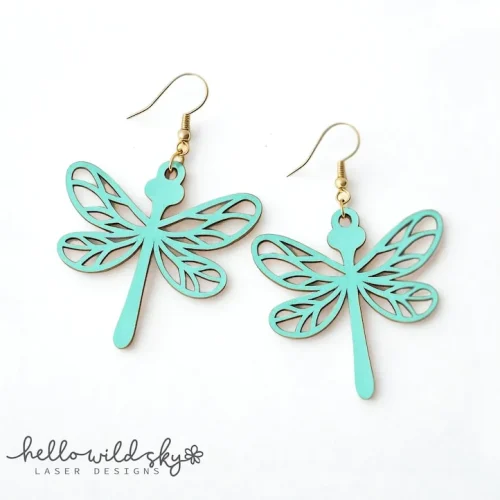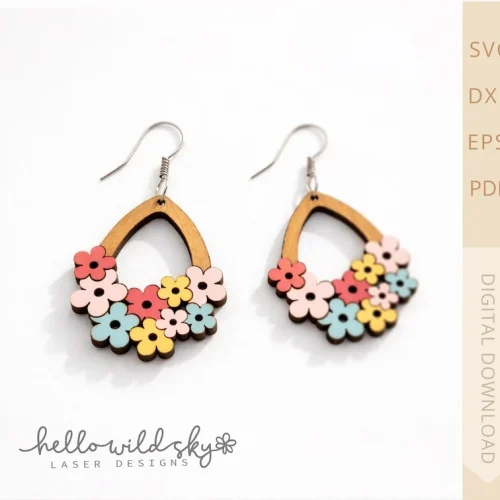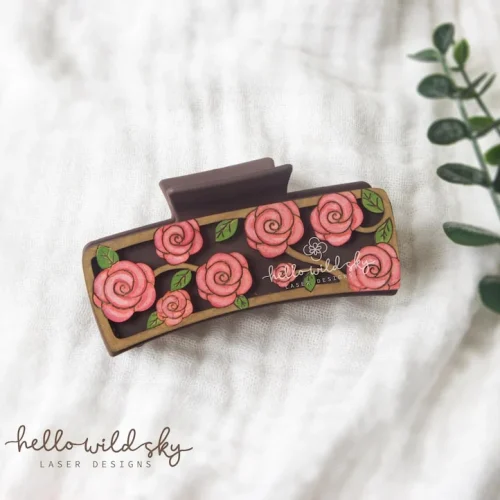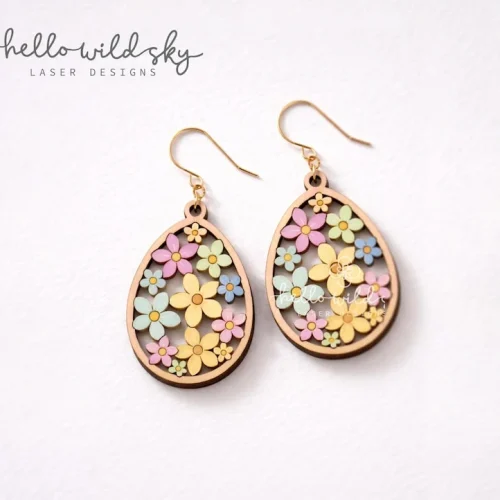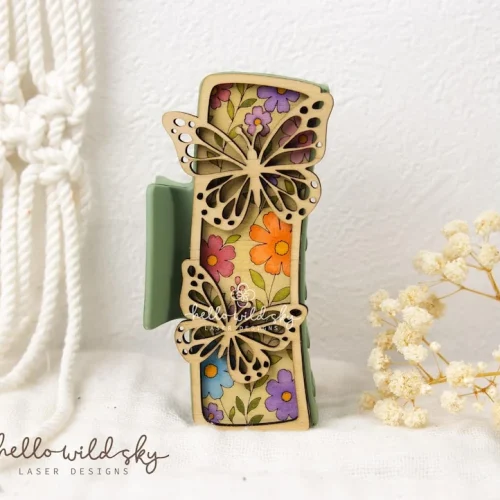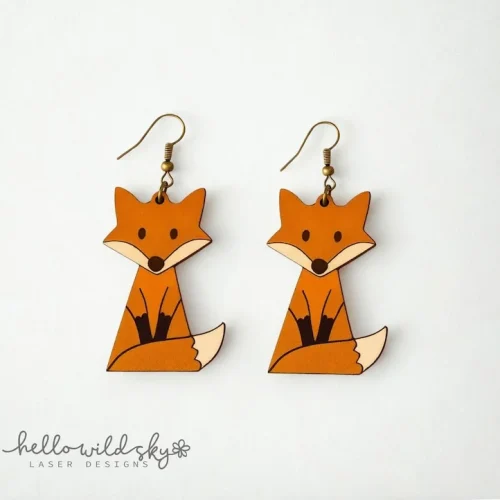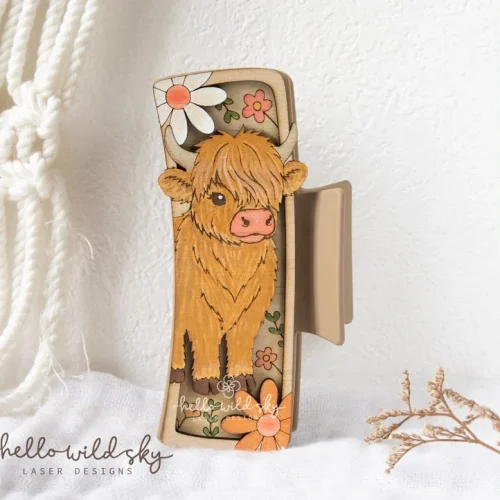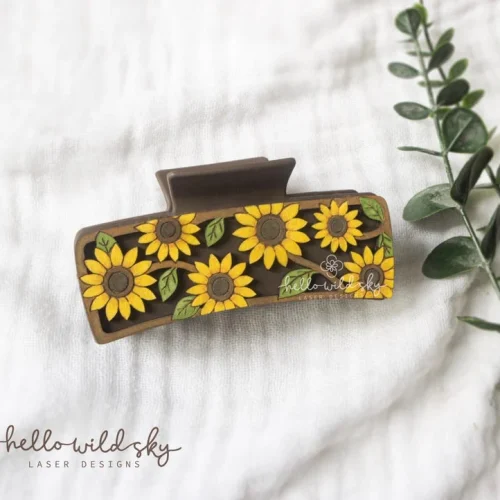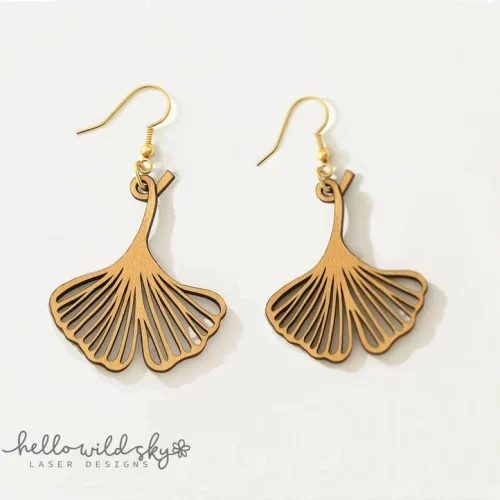

Laser-cut floral wooden earrings and flower-crown fox on cream paper background

Learn with

Hello Wild Sky

Whether you are new to laser crafting or ready to refine your skills, this is your step-by-step learning hub. Explore beginner-friendly guides, design tutorials, laser tips, and creative ideas to help you cut, create, and be wild with confidence.
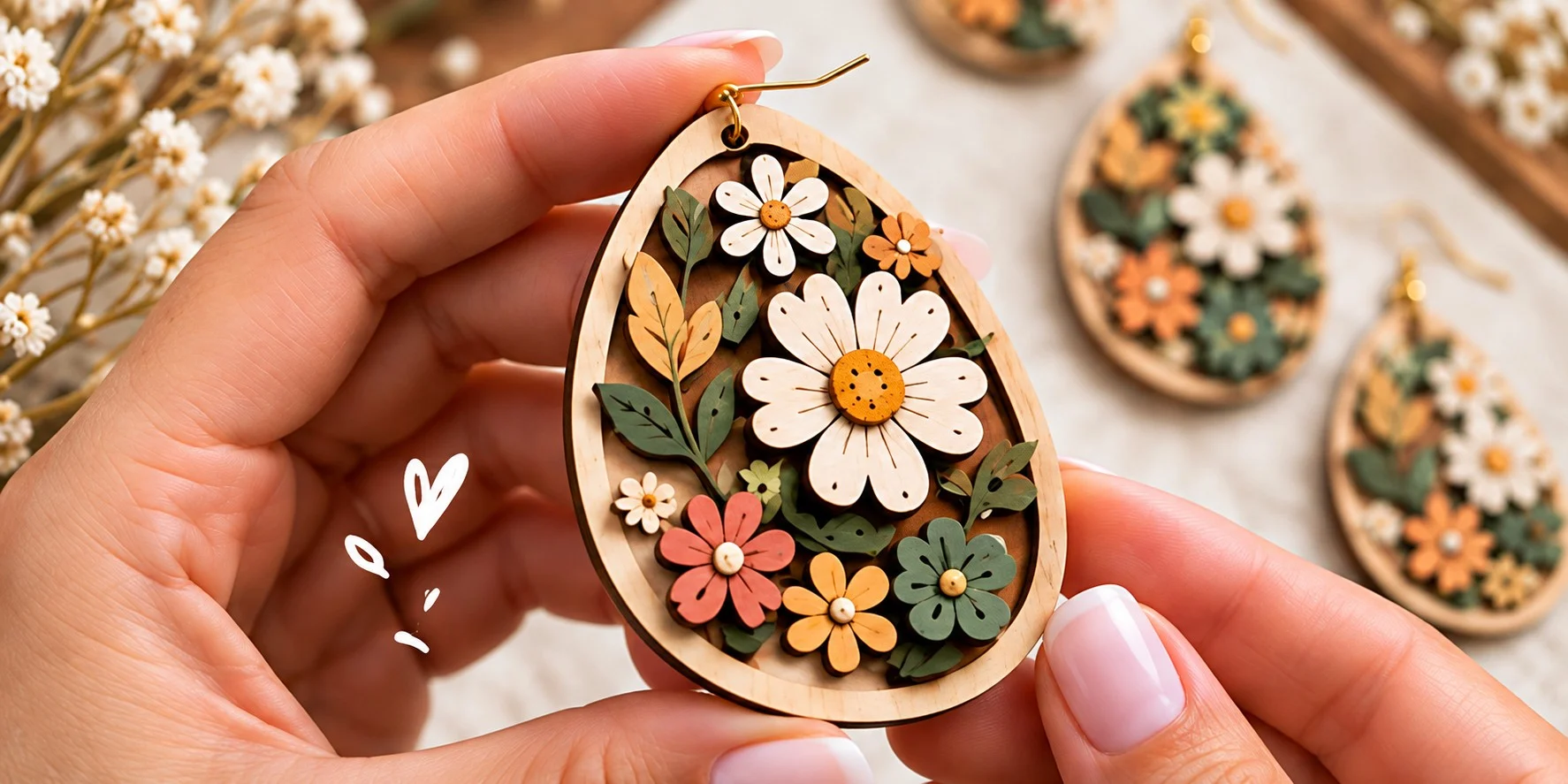
Hand holding a laser-cut wooden floral teardrop earring

start here!

Learn to Laser Step by Step

New to laser crafting? Start here. This guided beginner pathway walks you through the essentials, from preparing your files and materials, to cutting, assembling, and finishing beautiful projects with confidence.

Start Here
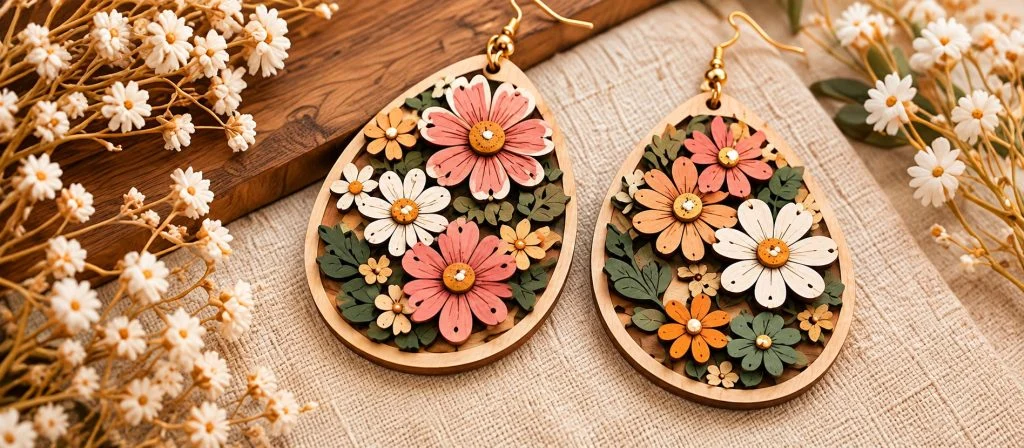
Laser-cut wooden floral teardrop earrings

Designs & Assembly

Learn how to prepare laser files, organize layers, and assemble your designs step by step. Find tips for gluing, sanding, and creating clean, professional pieces.

Explore Designs
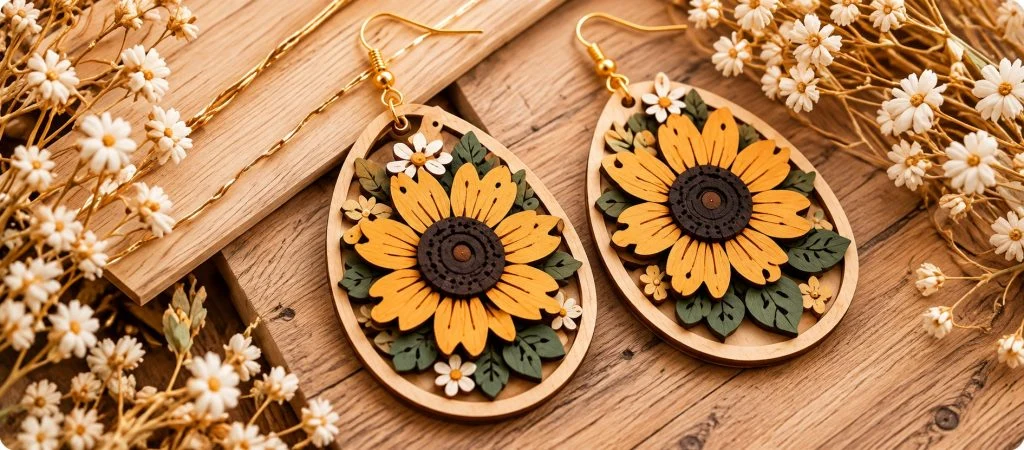
Laser-cut wooden sunflower teardrop earrings

Materials & Settings

Discover the best wood types, thickness, and laser settings for clean cuts and beautiful results. Learn how to choose the right materials for earrings, hair clips, ornaments and more.

Learn Materials
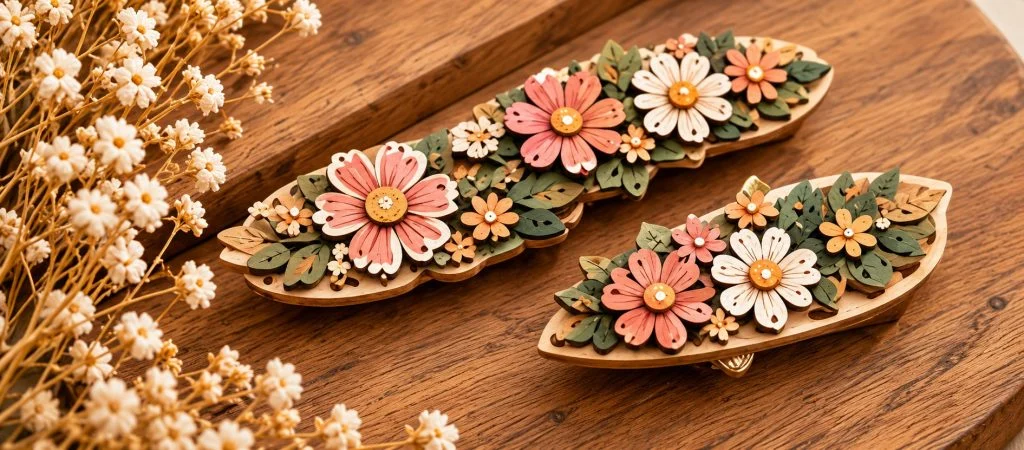
Laser-cut wooden floral hair clips

Techniques & Tips

Explore practical techniques like layering, engraving, painting, and finishing. Get helpful tips to make your laser projects look polished and unique.

View Techniques
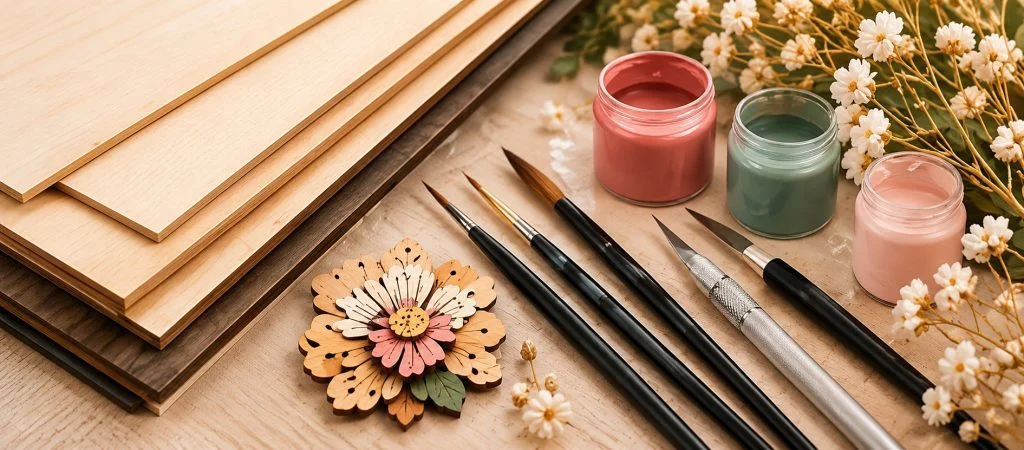
Plywood sheets, brushes, craft knife and paint jars for laser crafting

Tools & Resources

Get confident with the tools and supplies for your laser crafting. Explore recommended tools, paints, finishes, and other resources to make creating easier and more enjoyable.

Learn More

Featured Tutorials

From Raw Cut to Finished Piece: A 5-Step Wood Finishing Guide

Cleaning char, sanding, sealing, coloring, and attaching findings — fifteen minutes per piece.

Read guide

Choosing the Right Material for Laser-Cut Earrings

Wood, acrylic, or faux leather? What each material does best for earring and hair clip designs.

Read guide

4 Cut-File Mistakes That Ruin a Design (and the One-Line Fix)

Kerf blindness, thin bridges, double-cut paths, and cut/engrave color mix-ups — caught before they waste material.

Read guide

SVG vs DXF vs EPS: Which File Format Do You Actually Need?

A 10-second guide to picking the right cut file format for your Cricut, CNC router, or local engraving shop.

Read guide

Start Your First Project

1

Choose a Design

Pay once and the ZIP lands in your inbox and your account straight away. Inside: SVG, DXF, EPS and PDF of the same design.

2

Prepare Your File

SVG for Cricut and Glowforge, DXF for CNC and most desktop lasers, EPS or PDF if your shop asks for print-ready vectors.

3

Cut / Engrave

Run one piece on scrap of the exact board you will use. Settings that work on 3mm birch will char 3mm acrylic.

4

Assemble & Finish

Wipe the char, sand lightly, seal, then glue the layers and add your findings. Around fifteen minutes a piece.

Laser File Guides

SVG

Scalable vector. The safest all-rounder — Cricut, Silhouette, Glowforge and every browser-based laser app read it.

DXF

CAD exchange format. What CNC routers and most desktop laser controllers expect. No colour, pure geometry.

EPS

PostScript vector. Handy when a print or engraving shop asks for something their older software can place.

PDF

Opens anywhere. Use it to check the design at true size before you cut, or to hand a shop an exact template.

Frequently Asked

What exactly do I get when I buy?

A digital download — no physical item ships. Each design comes as SVG, DXF, EPS and PDF in one ZIP, available immediately after payment and re-downloadable from your account any time.

Can I sell what I make from these files?

Yes. The standard licence covers commercial use up to 150 finished products per design. You may not resell or share the file itself. If you need more than 150, there is an unlimited licence.

Which machine do I need?

Any laser or CNC that accepts SVG or DXF. Diode lasers handle thin wood well, CO2 handles wood and acrylic, fibre is for metal. The tutorials below go into the trade-offs.

What if a file will not open or cut properly?

Tell us and we will fix it or refund you. Most problems turn out to be a settings mismatch rather than the file, so send the machine and material you used.

Ready to Create?

Pick a design, download it in four formats, and cut it today.

Explore Designs